
Free AI Presentation Maker: How to Create and Download Professional Slides in Minutes
If you’ve ever stared at a blank slide deck an hour before a deadline, you already understand why “free AI presentation maker” has become such a common search. These tools take a topic, an outline, or even a rough paragraph of notes and turn it into a structured set of slides — complete with layout, imagery suggestions, and formatting — in a fraction of the time manual design takes. This guide walks through how these tools actually work, which types of options are worth trying depending on what you need, how downloading really works once you factor in free-tier limits, and the mistakes that trip people up when they expect AI to do 100% of the work.
This is written for anyone building a presentation without a design background — students, freelancers pitching a client, small business owners prepping a proposal, or anyone who just wants a professional-looking deck without opening a blank canvas.
Quick Answer: What Can These Tools Actually Do?
AI presentation tools generate a structured slide deck from a prompt, outline, or document — handling layout, text organization, and often image selection automatically. Most offer a free tier that lets you generate and view a deck at no cost, though downloading in an editable format like PowerPoint or PDF is sometimes limited on the free plan, occasionally with a watermark or a cap on the number of decks. The best free option depends on what you need: some tools are stronger for quick, casual decks, others for polished business presentations, and a few specifically prioritize giving you an unrestricted file download rather than keeping you locked into their web editor.
Why This Search Has Exploded Recently
A few years ago, “presentation software” mostly meant PowerPoint, Google Slides, or Keynote — tools that give you a blank canvas and expect you to design it yourself. What changed is that large language models got good enough to take unstructured input (a topic, some bullet points, even a pasted document) and produce a reasonably organized first draft of a deck, including suggested headings, bullet structure, and sometimes matching visuals. That shift turned presentation-building from a design task into more of an editing task, which is a meaningfully lower bar for people who aren’t comfortable with layout and typography decisions. It’s also why so many new tools entered this space at once — the underlying AI capability became available to build on, not because any single company invented the idea of an AI slide generator.
How AI Presentation Tools Actually Build Your Slides
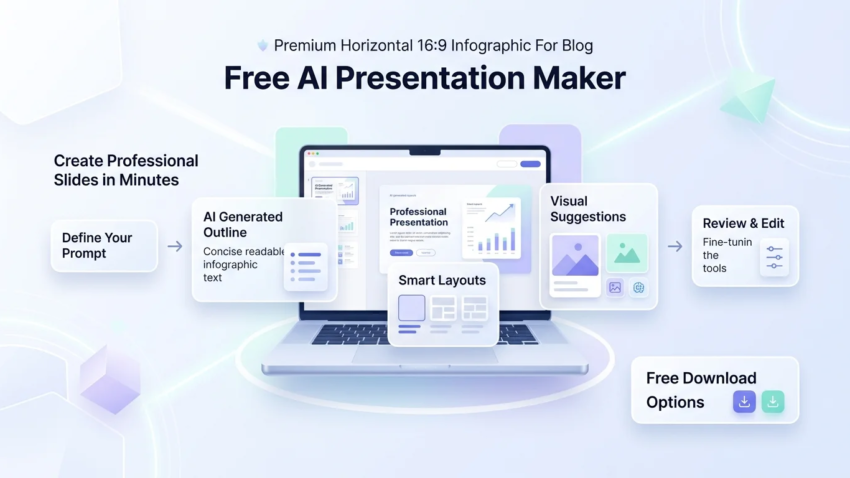
Most of these tools follow a similar pipeline, even though the interfaces look different:
- You provide input. This is usually a topic, a short outline, bullet points, or in some tools, an uploaded document or existing deck you want reformatted.
- The AI generates a content outline. It breaks your input into logical sections — usually one idea per slide — and writes headline and body text for each.
- A layout engine applies design. The tool matches generated content to a template or layout pattern, choosing things like text placement, image slots, and color themes.
- Images and icons get suggested or generated. Some tools pull stock imagery, some generate AI images, and some leave placeholders for you to fill in.
- You review and edit. This step matters more than most people expect — first drafts are rarely presentation-ready as-is.
Understanding this pipeline explains why quality varies so much between tools: some invest more in the outline/writing step, others in the visual layout step, and a tool that’s strong at one isn’t automatically strong at the other.

Free AI Presentation Maker Options Worth Trying
Rather than ranking these as “best overall,” it’s more useful to match the tool to what you’re actually trying to do, since strengths differ quite a bit by use case.
Best for Complete Beginners
Canva’s AI presentation features are a strong starting point if you’ve never built a deck before, mainly because Canva’s broader design ecosystem (templates, brand kits, stock assets) sits behind the AI generation step. You get an AI-drafted starting point, but you’re never stuck without design options if you want to adjust something — the drag-and-drop editor is one of the more approachable ones for non-designers.
Microsoft Designer / Copilot features in PowerPoint are worth trying if you’re already inside the Microsoft ecosystem, since the output stays natively in PowerPoint’s format without needing an export or conversion step at all.
Best for Business and Pitch Decks
Gamma and Tome both lean toward a more polished, modern visual style that tends to read well for pitch decks and investor-style presentations, with less of the “template-y” look that some tools default to. Beautiful.ai takes a slightly different approach — it applies design rules automatically as you edit, so even manual adjustments tend to stay visually consistent, which is useful if the deck needs to look intentional rather than assembled.
Best for Getting a Real File Download
If your main frustration is tools that only let you view a deck online rather than actually getting a file, look specifically for export support to .pptx or .pdf on the free tier — not just a “share link.” SlidesAI, a Google Slides add-on, is worth trying here specifically because it generates directly inside Google Slides, so your output is automatically a real, editable file from the start rather than something you have to export out of a separate platform. Decktopus and Plus AI (another Slides-native option) are also worth checking for the same reason. Free-tier export limits do vary and change over time, so it’s worth checking each tool’s current terms directly before committing to one for something time-sensitive.
Step-by-Step: Turning an Idea Into a Finished Deck
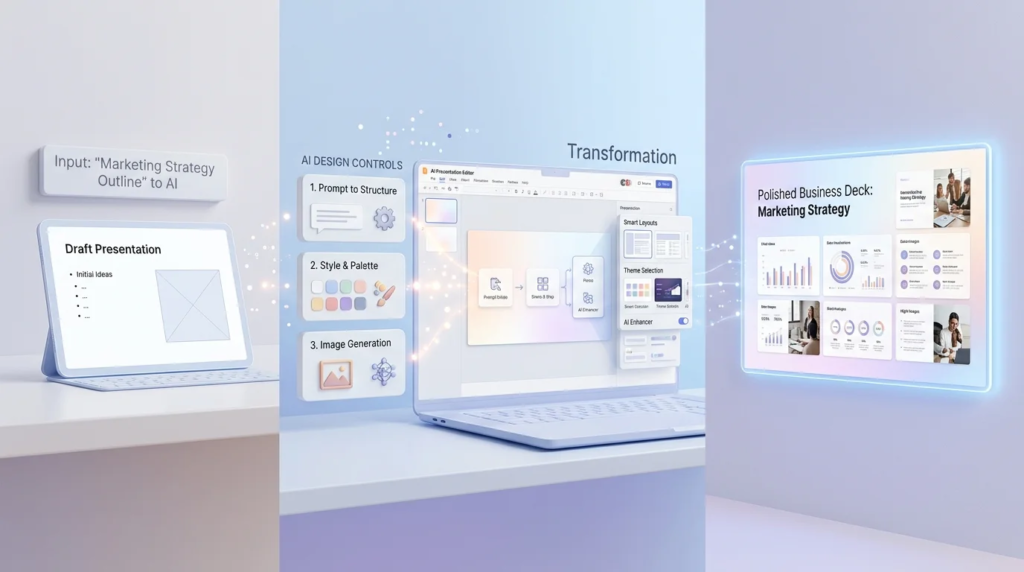
- Start with a clear prompt, not just a topic. “Marketing plan for a coffee shop” produces a much better first draft than “coffee shop,” because the AI has more to work with when structuring sections.
- Specify the audience and tone if the tool allows it. A pitch deck for investors and a training deck for new employees need different structures, and naming that upfront saves editing time later.
- Let the AI generate the full outline before editing anything. Editing slide-by-slide as it generates often means you end up reworking earlier slides once you see how later ones turned out.
- Review the outline structure first, content second. Check whether the sections make logical sense before polishing wording — restructuring after detailed edits wastes the editing you already did.
- Replace generic stock imagery or placeholder icons with anything specific to your actual content; this is usually the single biggest thing that makes an AI-generated deck look generic if skipped.
- Export or download once the structure is finalized, not before, since re-exporting after every small edit is unnecessary friction.
How Downloading Actually Works (And Where “Free” Gets Limited)
This is where most of the confusion in this category comes from. “Free” generally means free to generate and view a deck in the tool’s own editor — it doesn’t always mean unrestricted downloading. Common patterns worth knowing:
- Some tools allow unlimited free downloads but only in PDF, not editable PPTX.
- Some tools cap the number of free exports per month, after which you either wait or upgrade.
- Some add a visible watermark on free-tier exports, removable only on a paid plan.
- Slides-native tools (like Google Slides add-ons) sidestep this issue entirely, since your file already lives in Google Slides and downloading it uses Slides’ own free export options rather than the AI tool’s.
If getting an unrestricted, editable file matters more to you than fancy AI-generated visuals, this is the single most important thing to check before you invest time building a full deck in any given tool — check it before you start, not after you’ve already built the presentation.
Common Mistakes People Make With These Tools
Assuming the first draft is done. AI-generated decks are a strong starting point, not a finished product. Skipping the review step is the most common reason people end up disappointed with the output.
Writing a vague prompt. A one-word topic gives the AI very little to structure around; specific input produces specific, usable output.
Not checking export terms before building. Spending 30 minutes building a deck only to discover downloading requires an upgrade is a frequent and avoidable frustration.
Ignoring brand consistency. If this is for a business, dropping in your actual logo, colors, and fonts matters more than most people initially think, since default AI themes tend to look interchangeable between different users of the same tool.
Using the AI-generated deck as-is for something high-stakes. For an important pitch or presentation, treat the AI output as a first draft that still needs a human review pass — not a substitute for someone checking accuracy and tone.
Where AI-Generated Presentations Fall Short
These tools are genuinely useful for structure and speed, but they have real limits. AI-generated content can be generic when the input is vague, and it doesn’t know your specific audience the way you do — a deck for a technical team and a deck for executives shouldn’t read the same way, and the AI won’t automatically know which one it’s writing for unless you tell it. Visual output can also look similar across different users of the same tool, since everyone is drawing from the same underlying template and theme library. And for anything involving sensitive or confidential business information, it’s worth checking a tool’s data handling policy before pasting in proprietary content, the same way you would with any AI tool that processes your input on external servers.
Expert Tips for Better Results
- Feed it your own outline instead of a single-line topic — the more structure you give it, the less generic the output tends to be.
- Generate 2–3 versions with slightly different prompts if the tool allows it, and combine the best sections rather than settling for the first attempt.
- Check the download format before you invest editing time, not after.
- Keep a consistent brand kit (logo, colors, fonts) ready to drop in, since most tools support this and it noticeably reduces the “generic AI deck” look.
- Use the AI for structure, and do a manual pass for tone — wording that sounds fine for a blog can sound off in spoken presentation delivery, so read it aloud before finalizing.
Frequently Asked Questions
Is there really a free AI presentation maker, or is it always a trial? Several tools offer a genuinely free tier for generating and viewing decks, though downloading in an editable, watermark-free format is sometimes limited to paid plans — this varies by tool, so it’s worth checking current terms directly.
What’s the best free AI presentation maker for beginners? Tools built on top of a broader design platform, like Canva’s AI features, tend to be more approachable for beginners since you’re never stuck without simple editing options if you want to make changes.
Can I download my AI-made presentation as a PowerPoint file? Many tools support .pptx export, but some restrict it on the free tier — Slides-native tools that generate directly inside Google Slides or PowerPoint sidestep this issue since the file is native from the start.
Do free AI presentation tools add a watermark? Some do on free-tier exports, removable on a paid plan; others don’t watermark but limit the number of free downloads instead — check the specific tool’s current policy before relying on it for something time-sensitive.
How does an AI presentation maker actually generate slides? It typically breaks your input into a logical content outline, writes headline and body text per section, applies a layout template, and suggests or generates supporting imagery — then leaves the result for you to review and edit.
Are AI-generated presentations good enough for a real business pitch? They can be a strong starting point, but treat the first draft as something to review and refine rather than present as-is, especially for high-stakes audiences like investors or clients.
What information do I need to give the AI to get good results? A specific topic, your intended audience, and the tone you want (formal, casual, persuasive) all help — vague, one-line prompts tend to produce generic, less useful output.
Can I edit the slides after the AI generates them? Yes, in every mainstream tool — the AI-generated version is a draft, and nearly all of these platforms include a standard slide editor for manual adjustments afterward.
Is my data safe when I use an AI presentation tool? Policies vary by provider, so it’s worth checking each tool’s data handling terms before pasting in sensitive or proprietary business information, the same caution you’d apply to any AI tool processing your input externally.
What’s the difference between an AI presentation maker and a template library? A template library gives you a pre-designed empty layout you fill in yourself; an AI presentation maker generates the actual content and structure for you based on your input, then lets you adjust from there.
Final Takeaway
A free AI presentation maker can genuinely save you the hardest part of building a deck — starting from a blank page — by turning a rough idea into a structured draft in minutes. The catch is that “free” usually means free to generate and view, not always free to download without limits, so it’s worth checking export terms before you invest editing time in any specific tool. Treat the AI output as a strong first draft rather than a finished product: give it a specific, detailed prompt, review the structure before polishing wording, and do a manual pass for tone and brand consistency before you present it to anyone who matters.

Hamad Arshad
SEO Specialist | SEO Manager | GEO Strategist
7+ Years of Experience in SEO, GEO, AEO, AI SEO, Local SEO, Technical SEO, PPC, Google Ads & Meta Ads.






Leave a Reply