

Top Free AI Tools Everyone Should Be Using in 2026
Last month my sister called me in a mild panic. She had a client presentation due the next morning, no design skills, and had just spent two hours fighting with PowerPoint templates that all looked like they were made in 2014. I talked her through three free tools over the phone while she was still on her lunch break, and she sent me the finished deck an hour later looking like she’d hired a designer.
That phone call is basically why I’m writing this. I’ve spent way too much of my free time testing AI apps over the past yearsome genuinely useful, some that promise the world and deliver a paywall after your third click. So here’s the list I actually give people when they ask, not a copy paste roundup of “top 10 AI tools” that reads like it was written by a press release.
A quick heads-up before we dive in: free tiers change constantly. A tool that gave generous limits in January might tighten them by summer, and vice versa. I’ll tell you roughly what to expect, but always glance at the pricing page before you build a workflow around any of these.
The everyday chatbot you’ll actually open every day
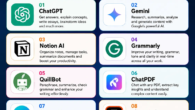
Everyone has a favorite, and honestly it’s fine to use more than one. I keep ChatGPT, Claude, and Gemini all open in different tabs because they’re genuinely good at different things.
ChatGPT’s free tier is the one I recommend to people who just want a jack-of-all-trades drafting emails, explaining a confusing PDF, brainstorming names for a side project. Claude is the one I reach for when I need something written that actually sounds like a person wrote it, or when I’m working through a long, messy document and don’t want the AI to lose the thread halfway through. Gemini earns its spot because it lives right inside Google Docs, Sheets, and Gmail if you’re already in that ecosystem, which saves a stupid amount of copy-pasting.
My honest tip: don’t marry yourself to one chatbot. Free tiers all come with usage caps, and when you hit the wall on one, having a second one ready saves you from losing momentum on whatever you’re working on.
For actual research, not just guessing
I made the mistake early on of using a general chatbot for research and just trusting whatever it told me. Bad idea I once cited a statistic in a blog draft that turned out to be completely made up. Lesson learned the hard way: check your sources.
That’s where Perplexity changed things for me. It searches the web and shows you exactly where each claim came from, so you can click through and verify instead of taking it on faith. I use it constantly now for anything factual comparing product specs, checking recent news, or just settling arguments with friends.
The other one I didn’t expect to love this much is Google’s NotebookLM. You upload your own documents PDFs, articles, your own notes and it only answers based on what you gave it, instead of pulling random stuff from the internet. I used it to study for a certification exam by dumping in all my course PDFs, and the flashcards and quiz questions it generated saved me a weekend of manual note-making. It also has this odd but genuinely fun feature where it turns your documents into a podcast-style conversation between two AI hosts. Sounds gimmicky until you’re folding laundry and absorbing a technical paper at the same time.
Design tools that don’t require a design degree
Back to my sister’s deck. Here’s the actual step-by-step of what we did that night:
- Gamma for the slide structure. You type in your topic, pick a style, and it builds a full set of slides with layout and visuals already in place. She just had to swap in her own numbers and a couple of client-specific details.
- Canva for polishing a few slides that needed extra visuals Canva’s AI features let you generate images or clean up layouts without knowing the first thing about design software.
- Ideogram for one custom graphic with text on it, because most AI image tools still mangle text and this one actually gets it right most of the time.
None of this cost her anything, and the whole thing took under an hour once we had a plan instead of just clicking around aimlessly, which is what she’d been doing for the two hours before I called.
When you need voice, video, or audio
I run a tiny podcast on the side, and ElevenLabs has genuinely saved me when a guest’s audio came through garbled I used it to clean things up and even generate a placeholder narration for an intro I hadn’t recorded yet. It’s become something of an industry standard for AI voice work.
For quick video experiments, tools like Runway and Kling AI let you generate short clips from text or images. I wouldn’t build an entire ad campaign on the free credits alone they run out fast, usually within a handful of clips but they’re great for testing an idea before you commit real money or time to a proper shoot.
If you sit in a lot of meetings, Fireflies.ai quietly became one of my most-used tools. It joins your call, transcribes everything, and spits out a summary with action items afterward. I stopped taking notes in meetings altogether once I trusted it, though I’d still recommend skimming the summary right after the call while your memory can catch anything it misread.

Coding help without hiring a developer
I’m not a professional developer, but I tinker. Claude and ChatGPT have both talked me through fixing broken scripts and writing small automation tools I never would have attempted otherwise. The trick I learned the hard way: paste in the actual error message, not just “it’s not working.” The more specific you are, the less time you waste going back and forth.
Mistakes I made so you don’t have to
- Trusting AI-generated facts without checking. Always verify anything with numbers, dates, or quotes, especially for anything you’re publishing or sending to a client.
- Burning through free credits on a whim. Video and image generation tools chew through free credits fast. Plan your prompts before you start clicking generate over and over.
- Assuming free means unlimited. Most “free” tools cap your usage per day or per month. Know the limit before you build a deadline-dependent workflow around one tool.
- Ignoring privacy settings. If you’re uploading client documents or anything sensitive into these tools, check what the company does with your data first. Some tools use free-tier content to train their models unless you opt out.
- Sticking with one tool out of habit. The tool that was best a year ago might not be the best fit today. It’s worth reshuffling your toolkit every few months.
Where this leaves you
None of these tools are magic, and none of them replace actually knowing your subject or double-checking your own work. What they do is remove the boring, repetitive parts formatting a deck, transcribing a call, drafting the first version of an email you’d have written eventually anyway.
Start small. Pick one problem you deal with every week meeting notes, research, a recurring design task and try one tool from this list on it. If it sticks, add another next month. That’s basically how I built my own toolkit, one annoying task at a time, and it’s a lot less overwhelming than trying to adopt ten new apps in a weekend.

Hamad Arshad
SEO Specialist | SEO Manager | GEO Strategist
7+ Years of Experience in SEO, GEO, AEO, AI SEO, Local SEO, Technical SEO, PPC, Google Ads & Meta Ads.






Leave a Reply