
Microsoft SwiftKey AI Keyboard: The Complete Guide to Features, Setup, Privacy, and Whether It’s Worth It
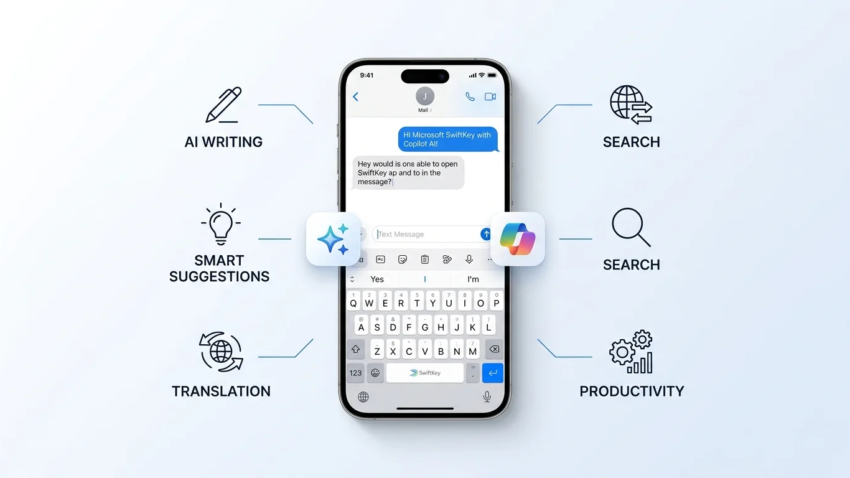
Your phone’s keyboard is probably the app you touch more than any other, yet most people never think twice about which one they’re using. Microsoft SwiftKey AI keyboard has spent over a decade trying to change that, and its recent shift toward AI-powered writing tools has turned it into something closer to a built-in writing assistant than a simple typing tool. If you’ve seen the app mentioned alongside Copilot, swipe typing, or AI stickers and wondered whether it’s actually worth installing, this guide walks through what it does, how to set it up, what it costs, and where it genuinely falls short.
Quick Answer
Microsoft SwiftKey AI keyboard is a free third-party keyboard app for Android and iOS that replaces your phone’s default keyboard with one built around AI-assisted typing. It offers swipe typing, adaptive predictive text, a Copilot-powered Compose and rewriting tool, AI-generated stickers, a built-in clipboard, and multilingual support across 700+ languages. It’s free to download and use, with optional Microsoft account sign-in for syncing and cloud-based AI features.
What Is Microsoft SwiftKey AI Keyboard?
Microsoft SwiftKey AI keyboard is a replacement keyboard app that installs alongside — or instead of — your phone’s built-in keyboard. Once enabled, it handles every bit of text you type across your entire device: messaging apps, email, social media, notes, everything. What sets it apart from a stock keyboard is the layer of artificial intelligence sitting behind the typing experience, from predictive suggestions that adapt to your personal writing style to a full AI writing assistant built directly into the toolbar.
SwiftKey has always positioned itself around speed and personalization. Long before “AI keyboard” was a marketing term, it was already known for learning how a specific person writes — their slang, the nicknames they use for contacts, their typical sentence structure — and using that to predict text more accurately than a generic dictionary-based keyboard could.
A Quick History — From Predictive Text to Copilot
SwiftKey launched on Android back in 2010 as an independent app built by a UK-based startup, and it built its early reputation on swipe typing and unusually accurate predictive text. Microsoft acquired the company in 2016 and has spent the years since folding it into its broader AI strategy. The most visible shift happened once Copilot became Microsoft’s flagship AI brand: SwiftKey’s writing tools, rewriting features, and image generation were rebuilt around Copilot and Bing’s underlying AI models, turning what used to be a fast typing app into an AI-first keyboard that competes on capability, not just speed.
Core AI Features Explained
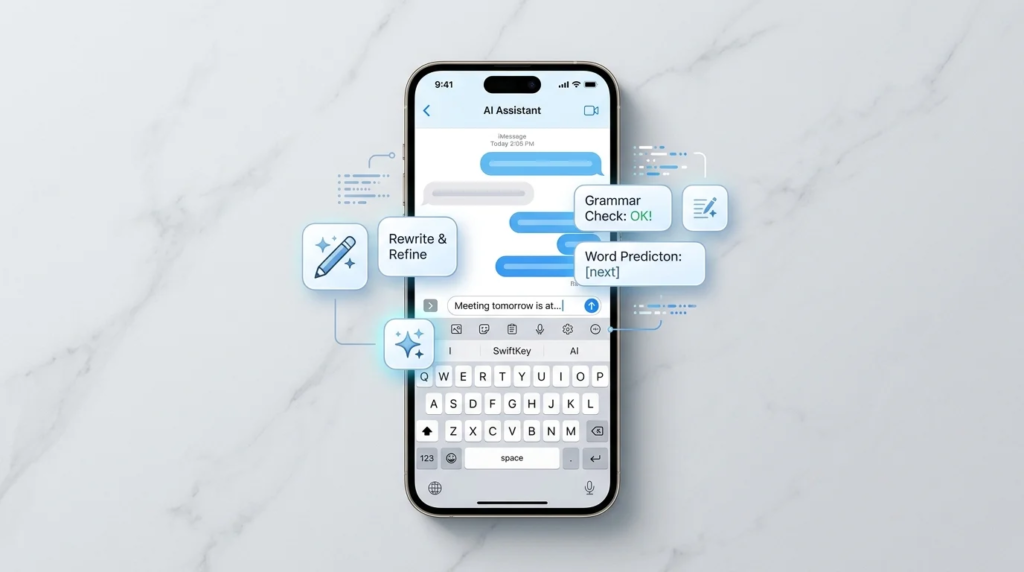
SwiftKey’s feature set falls into a few clear categories: AI-assisted writing, AI-generated visuals, and the typing fundamentals it was originally built on. Here’s what each one actually does in practice.
Copilot Compose and the Editor Tool
The most significant addition to SwiftKey is Copilot Compose, accessible through an Editor option in the keyboard’s toolbar. Instead of typing a full message yourself, you can describe what you want to say and let Compose draft it, or paste in rough text and ask it to adjust the tone, shorten it, or clean up the grammar. A practical example: typing a blunt one-line complaint about a subscription and asking Compose to turn it into a polite cancellation request produces a full, appropriately worded message without leaving the app you’re typing in. This is genuinely useful for anyone who writes a lot of quick messages and wants a more polished result without switching to a separate AI chat app.
AI Stickers and Image Creation
SwiftKey also includes AI image generation, powered by Bing Image Creator, which lets you generate custom stickers and images from a text description or a photo — turning a selfie into a stylized sticker, for instance. It’s a lightweight, fun feature rather than a core productivity tool, and it sits alongside a large library of existing GIFs, emoji, and pre-made stickers accessible from the same toolbar.
Swipe Typing and Predictive Text
Underneath the AI additions, SwiftKey is still fundamentally a typing keyboard, and this is where it earns most of its long-term users. Swipe typing lets you drag a finger across letters instead of tapping each one, and the predictive engine is built to adapt specifically to how you write rather than relying purely on a generic dictionary. Over time it picks up on contact names, informal spelling, and phrases you use often, which is the main reason long-time users tend to say typing feels noticeably faster once the keyboard has “learned” them.
Built-In Clipboard and Translator
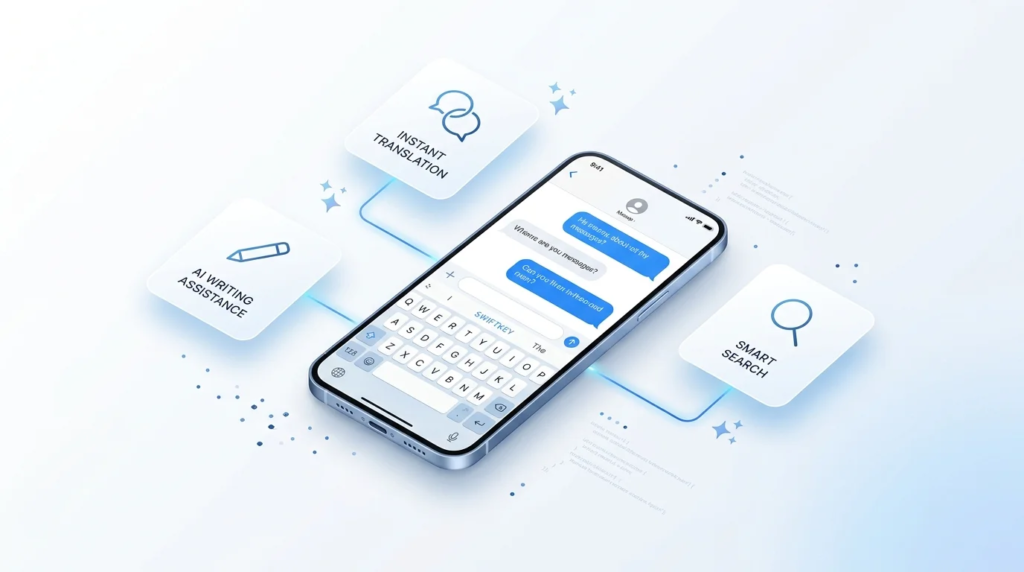
A built-in clipboard manager stores recent copied text and screenshots so you can paste them again later without switching apps to find them — useful for anyone who regularly copies addresses, confirmation codes, or snippets of text between apps. SwiftKey also includes real-time translation, letting you type in one language and have it converted for the person you’re messaging, which is a meaningful advantage for anyone regularly messaging across languages.
How to Set Up SwiftKey on Android and iPhone
Setup only takes a couple of minutes on either platform, but the steps differ slightly.
On Android:
- Download Microsoft SwiftKey AI Keyboard from the Google Play Store.
- Open the app and select Enable SwiftKey, which takes you to your phone’s language and input settings.
- Toggle SwiftKey on, then choose Select SwiftKey when prompted to set it as your active input method.
- Return to the app to finish personalization, including choosing whether to allow optional permissions like contacts or microphone access.
On iPhone (iOS):
- Download the app from the App Store and create an account, sign in, or skip account setup.
- Go to Settings on your iPhone and find the SwiftKey app entry.
- Select Keyboards, enable SwiftKey, and turn on Allow Full Access, which is required for swipe typing and AI features to work.
- Switch to SwiftKey from any text field by tapping and holding the globe icon on your keyboard.
One practical note: on iOS, Apple’s platform restrictions mean SwiftKey can’t fully replace the system keyboard the way it does on Android — you still switch to it manually per text field, and a handful of Android-only conveniences (like arrow-key navigation) simply aren’t available.
Is SwiftKey Free? Pricing Explained
Yes — Microsoft SwiftKey AI keyboard is free to download and use on both Android and iOS, and the core feature set, including swipe typing, predictive text, the clipboard, and Copilot-powered Compose, doesn’t sit behind a paywall. There’s no separate premium subscription tier for the keyboard itself. The trade-off isn’t a subscription fee; it’s the optional Microsoft account sign-in, which unlocks cloud sync and ties usage to Microsoft’s broader ecosystem, including recurring prompts to connect OneDrive. None of that is required to use the keyboard’s core typing and AI features, but skipping it means losing sync across devices.
SwiftKey Privacy and Permissions: What You’re Actually Agreeing To
Because a keyboard technically sees everything you type, privacy is a fair concern, and it’s worth understanding exactly what SwiftKey asks for rather than accepting a blanket “it needs access to everything” assumption.
- Microphone — only used when you actively choose voice-to-text input; it isn’t a background listening permission.
- Photos and videos — used only when you deliberately select or insert an image, GIF, or sticker into a message.
- Contacts — used to make it easier to enter names when composing messages; this is optional, not required for typing to work.
- Camera — used only when you choose to take a photo directly inside the app, for example to create an AI sticker.
All of these are optional permissions — you can decline them individually and still use the keyboard’s core typing functions, though some AI features (like turning a photo into a sticker) obviously depend on the permission they relate to. The more common frustration users report isn’t a hidden data-collection issue so much as the app’s persistence about connecting a Microsoft account and OneDrive, which some long-time users find repetitive and pushy rather than optional-feeling. If that bothers you, it’s worth knowing it can generally be dismissed without losing access to typing and AI writing features.
SwiftKey vs Gboard vs Your Phone’s Default Keyboard
The most common comparison point is Google’s Gboard, since both are free, both offer swipe typing, and both have leaned into AI features in recent years. Here’s how they generally stack up:
| Feature | SwiftKey | Gboard | Default Keyboard |
| Swipe typing | Yes | Yes | Varies by phone |
| Built-in AI writing assistant | Yes (Copilot Compose) | Limited / Gemini-based on some devices | Rare |
| AI image/sticker generation | Yes | Yes (Google AI) | No |
| Built-in translator | Yes | Yes | No |
| Cross-platform (Android + iOS) | Yes | Yes | N/A |
| Ecosystem tie-in | Microsoft account / OneDrive | Google account | None |
| Best for | Heavy writers already using Microsoft/Copilot tools | Users deep in Google’s ecosystem | Minimal-permission users |
In practice, the choice often comes down less to feature checklists — since both apps cover similar ground — and more to which ecosystem you already live in. Someone who already uses Copilot and Microsoft 365 will find SwiftKey’s AI features fit naturally into their workflow; someone anchored to Google’s apps will likely find Gboard’s integrations more useful day to day.
Common SwiftKey Problems and How to Fix Them
SwiftKey is generally reliable, but a few recurring complaints show up often enough to be worth addressing directly rather than glossing over.
The keyboard keeps crashing or reverting to the default keyboard
This is one of the more frequently reported issues, particularly on iOS. It’s usually tied to a specific app conflict or a keyboard cache issue rather than a device-wide problem. A typical first fix is force-closing SwiftKey, restarting the phone, and checking for a pending app update, since Microsoft ships fixes for these conflicts fairly regularly.
The constant OneDrive / Microsoft account prompt
As mentioned above, this is a sign-in nudge rather than a functional requirement. Dismissing it repeatedly (or completing the sign-in once, if you’re already in the Microsoft ecosystem) is usually enough to stop it from interrupting typing.
Missing features on iPhone
Apple’s third-party keyboard restrictions mean some conveniences that exist on Android — like arrow-key text navigation or resizing the keyboard — aren’t available on iOS. This isn’t a bug so much as a platform limitation shared by every third-party keyboard on iPhone, not something unique to SwiftKey.
Practical Ways People Use SwiftKey’s AI Features
A few scenarios illustrate where the AI layer actually earns its place rather than being a gimmick:
- Turning a rough, emotional first draft of a message into something calmer and more professional before sending it to a coworker or landlord.
- Drafting a short reply to a group chat while multitasking, using Compose to expand a two-word idea into a full sentence.
- Messaging a friend in another language and letting the built-in translator handle the back-and-forth in real time.
- Creating a quick custom sticker from a photo for a birthday message instead of hunting through a generic GIF library.
None of these require any special setup beyond what’s already covered above — they’re accessible from the same toolbar the moment SwiftKey is active.
Common Mistakes New Users Make
- Declining every optional permission and then being confused why photo-based AI stickers don’t work — some AI features do depend on the permission they’re tied to.
- Assuming SwiftKey behaves identically on iPhone and Android; several conveniences are Android-only due to Apple’s platform restrictions.
- Treating the OneDrive prompt as mandatory and signing up for an account they didn’t actually want, instead of simply dismissing it.
- Not giving the predictive engine enough time to adapt — accuracy noticeably improves after regular use as it learns writing patterns, so judging it after a day or two undersells it.
Who Should Use SwiftKey — and Who Shouldn’t
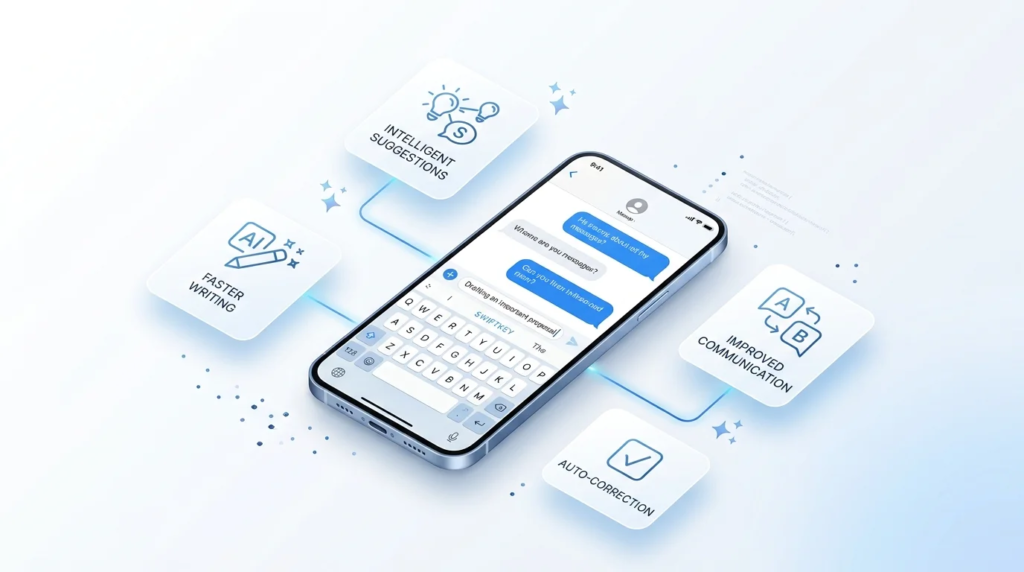
SwiftKey is a strong fit for people who type a lot on their phone and want AI writing help without opening a separate app, especially anyone already using Microsoft Copilot or 365 elsewhere. It’s also a solid pick for multilingual users, thanks to the built-in translator and its support for 700+ languages.
It’s a weaker fit for anyone who wants to minimize the number of apps with access to their typing activity on principle, iPhone users who specifically need the deeper text-navigation shortcuts only available on some other third-party keyboards, and anyone who’s already happy with Gboard and doesn’t have a reason tied to the Microsoft ecosystem to switch.
Frequently Asked Questions
What is Microsoft SwiftKey AI keyboard?
It’s a free third-party keyboard app for Android and iOS that adds swipe typing, adaptive predictive text, and Copilot-powered AI writing and image tools on top of standard typing functionality.
Is SwiftKey AI keyboard free?
Yes. The app and its core AI features, including Compose and predictive typing, are free to use, with an optional Microsoft account sign-in for cloud sync.
Is SwiftKey safe to use?
SwiftKey requests a set of optional permissions (microphone, photos, contacts, camera) tied to specific features, and each can be declined individually while still using core typing functions. As with any third-party keyboard, it’s reasonable to review what a given permission unlocks before granting it.
What’s the difference between SwiftKey and Gboard?
Both offer swipe typing and AI writing tools, but SwiftKey’s AI features are built on Microsoft Copilot and tie into a Microsoft account, while Gboard integrates more closely with Google’s own AI tools and account ecosystem.
Does SwiftKey work on iPhone as well as Android?
It works on both, but iOS’s platform restrictions mean some Android-only conveniences, such as arrow-key navigation and keyboard resizing, aren’t available on iPhone.
Why does SwiftKey keep asking me to sign in to OneDrive?
This is a recurring prompt to connect a Microsoft account for cloud sync, not a requirement for typing or AI features to function, and it can generally be dismissed.
Why does SwiftKey keep crashing?
Crashes are most often linked to an outdated app version or a conflict with a specific app; force-closing SwiftKey, restarting the device, and checking for updates resolves most cases.
Can I use SwiftKey without an internet connection?
Core typing, swipe input, and locally learned predictive text work offline, but AI features like Compose, translation, and image generation require an internet connection since they run through Microsoft’s cloud AI services.
What is SwiftKey’s Copilot Compose feature used for?
It drafts or rewrites text based on a short description or rough input, letting you adjust tone and length directly inside the keyboard’s Editor tool without switching to a separate AI app.
How do I turn off SwiftKey’s AI features if I don’t want them?
Individual AI tools like Compose and AI stickers can be left unused simply by not opening them from the toolbar; optional permissions tied to specific AI features can also be revoked from your phone’s app settings without affecting core typing.
Final Takeaway
Microsoft SwiftKey AI keyboard has grown from a fast, personalized typing app into something closer to a built-in AI writing assistant, and for people already invested in Microsoft’s ecosystem, that shift makes it genuinely more useful than a typical keyboard replacement. The core typing experience — swipe input, adaptive predictions, translation, and clipboard — remains solid on its own, and the AI layer on top is optional rather than forced. Whether it’s worth installing really comes down to whether you want AI writing help built into your keyboard or would rather keep that functionality in a separate app; either way, it’s free to try, and nothing about setup or permissions locks you in.

Hamad Arshad
SEO Specialist | SEO Manager | GEO Strategist
7+ Years of Experience in SEO, GEO, AEO, AI SEO, Local SEO, Technical SEO, PPC, Google Ads & Meta Ads.








Leave a Reply