

Claude for Education My Honest Experience
Last semester I had a stack of 42 essays to grade, a lesson plan due Monday, and a laptop that kept freezing every time I opened one more browser tab. I was exhausted before the week even started.
A colleague leaned over during lunch and said, “Just try Claude.” I nodded politely and forgot about it for two weeks. Big mistake, honestly, because once I actually sat down and used it, my whole approach to lesson prep and grading changed.
This isn’t a “AI will save education” hype piece. It’s just what actually happened when I brought Claude into my classroom workflow, the messy parts included.
Wait, what even is Claude in this context
Claude is an AI assistant made by Anthropic. Think of it as a very well-read teaching assistant who never gets tired, never rolls their eyes at your fifth revision request, and can read a 30-page PDF in seconds. For a direct head-to-head, see ChatGPT vs Claude vs Gemini: The Honest 2026 Comparison.
Claude for Education
Anthropic actually built a version aimed at schools and universities called Claude for Education. It’s basically the same Claude you’d chat with normally, but with settings and tools tuned for classrooms — things like a Learning mode that nudges students toward understanding instead of just spitting out answers. For wider background on the field, see AI in Education.
I use it through the regular Claude.ai website, but some of my university friends have it through their school’s official license, which comes with admin controls so IT departments can manage it across a whole campus.
The first thing I used it for (and got wrong)
My first real test was asking Claude to write a full lesson plan for a 9th grade biology class on cell division. It did it in under a minute. Looked great on the surface — objectives, activities, a neat little assessment section.
Then I actually read it closely and realized it assumed a 90 minute class period. Mine are 45 minutes. I’d copied it straight into my planner without checking, and only caught the mistake the night before class while double checking timings.
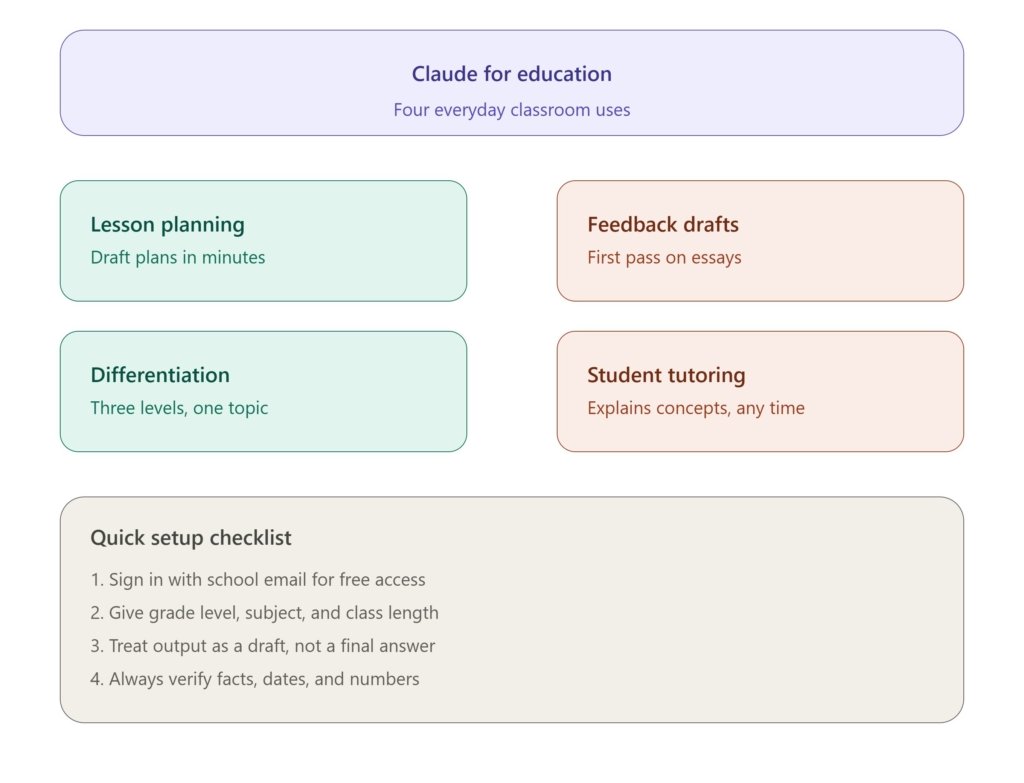
Lesson learned the hard way: Claude doesn’t know your school’s schedule, your students’ reading levels, or how loud the kid in the back row gets during group work. You have to feed it that context, or it’ll just guess based on generic assumptions.
Now I always start my prompts with specifics like:
- Grade level and subject
- Class length in minutes
- Any students who need extra support or modified pacing
- What we covered last class
That one change made the output about ten times more usable.
Where it actually saved me time
Grading feedback on written work. I don’t let Claude assign final grades — that still feels like something a human should own. But I do paste in a student’s essay and ask it to point out specific sentences with weak thesis statements, run-on sentences, or unclear transitions. It gives me a starting draft of feedback that I then edit in my own voice. What used to take me 15 minutes per essay now takes about 6.
Differentiating one lesson into three levels. I’ll write my main lesson plan, then ask Claude to create a simplified version for students who are behind, and an extension version for kids who finish early. This used to be the part of lesson planning I always skipped because there just wasn’t time. Now it actually happens most weeks.
Explaining concepts multiple ways. When a student doesn’t get photosynthesis explained as a diagram, I’ve asked Claude on the spot for an analogy involving a kitchen, or a sports team, or a phone battery. Having three or four backup explanations ready during a live lesson has genuinely changed how quickly kids catch on.
Turning messy notes into a rubric. I had scribbled grading criteria in a notebook for a group project. I typed it into Claude, roughly, typos and all, and asked for a clean 4-point rubric table. It took maybe 90 seconds and saved me an evening.
Step by step: how I actually set it up for my classes
- Go to claude.ai and create an account. If your school has an institutional license, use your school email — you’ll likely get it for free through Claude for Education rather than paying personally.
- Start a new chat and give it context first. Don’t jump straight to “make me a quiz.” Tell it your subject, grade level, and goal for the lesson.
- Ask for a draft, not a final product. Treat the first response as a rough draft you’ll edit, the same way you’d treat a template from Pinterest or Teachers Pay Teachers.
- Use the Projects feature for recurring classes. I created a Project for my 9th grade bio class and uploaded my syllabus and a few past lesson plans. Now every new chat inside that project already “knows” my class style, so I don’t have to repeat context every single time.
- Double-check facts, dates, and numbers. Claude is generally solid, but I once caught a wrong date for a historical event in a world history draft. Always verify anything factual before it goes in front of students.
- Save what works. Copy strong outputs into your own lesson bank so you’re not regenerating the wheel every semester.
For students: how it’s actually being used
I also teach a study skills elective, and I’ve watched students use Claude in ways that surprised me, for better and worse.
The good version looks like this: a student pastes in a confusing paragraph from their textbook and asks Claude to explain it more simply, then asks follow-up questions until it clicks. That’s basically tutoring, and it’s available at 11pm when no teacher is around.

The bad version looks like this: a student pastes an essay prompt and asks Claude to “just write it.” I can usually tell within a paragraph — the voice doesn’t match how that kid actually writes or thinks. A few of my colleagues use plagiarism-detection tools, but honestly the simplest fix has been changing the assignment itself. I now ask for an outline draft, a messy first draft, and a final draft as three separate submissions. Much harder to fake all three stages convincingly.
If you’re a student reading this, the honest advice is: use it to understand things faster, not to skip the thinking part. Teachers notice, and more importantly, you’re the one who loses out on actually learning the material. Students preparing for tests may also like What Is a Free AI SAT Prep Tool? My Honest Take.
Common mistakes I see people make
- Trusting it blindly on facts. It’s confident even when it’s wrong, so verify names, dates, and statistics yourself, especially for younger grades where a mistake can stick.
- Not giving enough context. Vague prompts get vague, generic output. Specific prompts get specific, usable output.
- Using it to replace grading entirely. It’s a first-pass tool, not a judge. Final grades and feedback tone should stay in your hands.
- Forgetting to check your school or district’s AI policy. Some districts have specific rules about what’s allowed with student data. Worth a five minute email to your IT department before you upload anything with student names attached.
- Assuming students won’t use it too. If you’re using AI to plan, assume some students are using it to complete work. Design assignments with that reality in mind rather than pretending it doesn’t exist.
A few tools worth knowing about alongside Claude
If you’re building an AI-assisted workflow for teaching, Claude isn’t the only piece. I pair it with Google Docs for collaborative editing, Kami for annotating PDFs with students, and occasionally Grammarly for a final language pass on my own written materials. None of these replace each other — they just cover different gaps. Another tool I track separately is covered in ZipTie AI Search Performance Tool: My Honest, Hands-On Experience.
So, is it actually worth it
For me, yes, but with a caveat. It didn’t make my job easier by doing the work for me. It made my job easier by taking the tedious first draft off my plate so I could spend my actual time on the parts that need a human — reading the room, adjusting on the fly, and giving feedback that sounds like me instead of a robot.
If you’re a teacher who’s curious but hasn’t tried it yet, start small. Pick one lesson plan or one stack of essays this week and just see what happens. You’ll probably catch a mistake or two, like I did with that 90-minute lesson plan disaster. That’s fine. That’s how you figure out where it actually fits into how you work.
Claude is an AI assistant made by Anthropic — like a very well-read teaching assistant who never gets tired and can read a 30-page PDF in seconds. Anthropic built a version aimed at schools and universities called Claude for Education, the same Claude you would chat with normally but with settings and tools tuned for classrooms, including a Learning mode that nudges students toward understanding instead of just spitting out answers.
The first real test was a full lesson plan for a 9th grade biology class on cell division, which Claude produced in under a minute — but it assumed a 90-minute class period, while the author’s classes are 45 minutes. The lesson: Claude does not know your school’s schedule, your students’ reading levels, or how loud the kid in the back row gets during group work, so you have to feed it that context or it will guess based on generic assumptions.
Grading feedback on written work — what used to take 15 minutes per essay now takes about 6, since Claude points out specific sentences with weak thesis statements, run-on sentences or unclear transitions and drafts feedback the author then edits in their own voice. It also helped differentiate one lesson into three levels, explain concepts multiple ways with analogies, and turn messy notebook notes into a clean 4-point rubric table in about 90 seconds.
Go to claude.ai and create an account — if your school has an institutional license, use your school email, since you will likely get it for free through Claude for Education. Start a new chat and give it context first — subject, grade level and goal — ask for a draft, not a final product, use the Projects feature for recurring classes, double-check facts, dates and numbers, and save what works into your own lesson bank.
The good version is a student pasting in a confusing paragraph from their textbook and asking Claude to explain it more simply, then asking follow-up questions until it clicks — basically tutoring, available at 11pm when no teacher is around. The bad version is a student pasting an essay prompt and asking Claude to ‘just write it,’ which is usually obvious within a paragraph because the voice does not match how that student actually writes or thinks.
Trusting it blindly on facts, since it is confident even when it is wrong — verify names, dates and statistics yourself, especially for younger grades; not giving enough context, since vague prompts get vague, generic output; using it to replace grading entirely, since final grades and feedback tone should stay in your hands; forgetting to check your school or district’s AI policy before uploading anything with student names attached; and assuming students will not use it too.

Hamad Arshad writes and edits AI Next Top from Rahim Yar Khan, Pakistan. He has worked in SEO and digital marketing for over 7 years and started this site to explain AI tools and news in plain language for non-technical readers. Every guide here is checked against the real tool before it is published.








Leave a Reply