
AI Tool Not Working? 5 Common Fixes You Can Try
AI tool not working right when you need it is one of the more common frustrations people run into with ChatGPT, Claude, Gemini, Copilot, and similar tools — a blank response, a spinning loader that never finishes, a login screen that won’t accept your password, or a cryptic error message. Most of the time, the cause is one of a small handful of predictable issues, and most of the time, you can fix it yourself in a couple of minutes without contacting support at all.
This guide is for beginners and everyday users who just want their AI tool working again, in the order most likely to solve the problem fastest. We’ll walk through five common fixes, explain what’s actually causing each type of failure, and cover when it’s genuinely time to stop troubleshooting and reach out to support instead.
AI Tool Not Working — Quick Answer Before You Troubleshoot
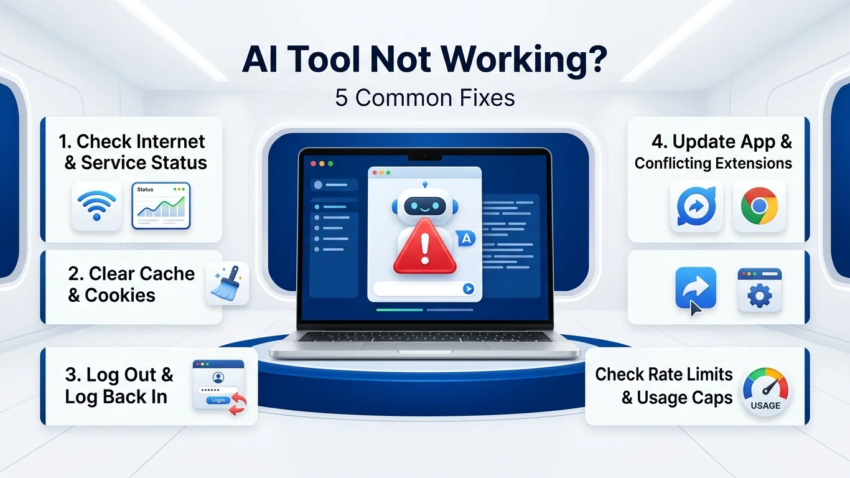
If your AI tool isn’t working, start by checking the provider’s official status page to rule out an outage, then refresh or clear your browser cache, log out and back in, confirm you haven’t hit a usage limit, and make sure the app is updated. These five checks resolve the large majority of “AI tool not working” issues, since most failures come down to a connection problem, a stale browser session, an account/billing issue, an outdated app, or a usage cap — not a deeper technical fault you need to fix yourself.
AI Tool Not Working? Start With These Quick Checks
Before working through the fixes in detail, run through this fast diagnostic — it takes under a minute and often points you straight to the right fix:
- Is your internet connection actually working? Try loading a different website to confirm.
- Does the problem happen on a different device or browser? If it works elsewhere, the issue is local to your original device or browser, not the AI tool itself.
- Is there an error message, or just a blank/frozen screen? A specific error message (rate limit, authentication failed, server error) tells you exactly which fix below to try first.
- Did this start right after an update, install, or browser extension change? That timing is a strong clue toward Fix 4.
AI Tool Not Working: Fix 1 — Check Your Internet and the Service Status Page
The single most common cause of an AI tool appearing broken isn’t the tool at all — it’s the connection between you and it, or a temporary problem on the provider’s side. Before assuming anything is wrong with your setup, confirm your internet connection is stable by loading an unrelated website, and check whether other apps relying on internet access are working normally.

AI Tool Not Working Due to a Provider Outage? Here’s How to Confirm It
Most major AI providers maintain a public status page (commonly at a URL like status.[provider’s domain]) that reports current outages, degraded performance, or scheduled maintenance in real time. If the status page shows an active incident, the fix isn’t anything on your end — it’s simply waiting for the provider to resolve it, and continuing to retry aggressively won’t speed that up. A quick web search for “[tool name] down” or “[tool name] status” also surfaces real-time reports from other affected users when a status page isn’t immediately obvious.
AI Tool Not Working: Fix 2 — Clear Your Cache and Cookies (or Try a Different Browser)
A surprisingly large share of “AI tool not working” reports come down to a stale or corrupted browser cache — old, cached versions of the tool’s interface files conflicting with the current live version, especially right after the provider ships an update. Clearing your browser’s cache and cookies for that specific site (rather than a full browser reset) usually resolves loading issues, broken layouts, or a tool that loads but won’t respond to input.
If clearing cache doesn’t help, testing in a different browser, or in your current browser’s private/incognito window, quickly tells you whether the issue is browser-specific. If the AI tool works fine in incognito mode, the cause is almost always a cached file, a cookie conflict, or a browser extension — not the AI tool itself.
AI Tool Not Working: Fix 3 — Log Out, Log Back In, and Check Your Account Status
Authentication issues are another frequent cause — a session token that’s expired, gone stale, or become out of sync between your device and the provider’s servers. Logging out completely, clearing that site’s cookies specifically if logging out alone doesn’t work, and logging back in resolves this in most cases.
AI Tool Not Working Because of a Billing or Subscription Issue?
If the AI tool logs you in but limits or blocks a specific feature you’re used to having, check your account’s billing or subscription status before assuming it’s a bug — a lapsed payment method, an expired free trial, or a downgraded plan commonly produces exactly this symptom (features working inconsistently or a paid feature suddenly unavailable) rather than a clear “your subscription has expired” message in every case.
AI Tool Not Working: Fix 4 — Update the App and Disable Conflicting Extensions
If you’re using a desktop or mobile app rather than a browser, confirm you’re running the current version — AI tools update frequently, and an outdated app version is a common, easily overlooked cause of features breaking or the app failing to connect at all. Most app stores and desktop apps show available updates clearly; installing the latest version resolves a meaningful share of “suddenly stopped working” reports.
Separately, browser extensions — particularly ad blockers, privacy/tracking blockers, and VPN browser extensions — can interfere with an AI tool’s ability to load properly or send requests, especially if the extension blocks scripts or requests the tool depends on. Temporarily disabling extensions one at a time (or testing in incognito mode, where most extensions are disabled by default) helps isolate whether one of them is the actual cause.
AI Tool Not Working: Fix 5 — Check for Rate Limits and Usage Caps
Many AI tools — especially on free or lower-tier paid plans — enforce usage limits: a maximum number of messages per hour, a daily cap, or a rate limit on how quickly requests can be sent. When you hit one of these, the tool may respond with a clear error message, or in some cases simply stop responding or slow down noticeably without a fully clear explanation, which can look identical to a technical failure.
If your AI tool was working normally and then suddenly became slow, unresponsive, or started giving short/truncated answers after heavy use, a usage or rate limit is a strong candidate — check your account’s usage dashboard if the tool provides one, or simply wait the stated reset period (commonly measured in hours) before trying again.
AI Tool Not Working on Mobile? Extra Steps to Try
Mobile-specific issues have a few additional common causes beyond the fixes above. Confirm the app has the necessary permissions (particularly for microphone or camera access, if the tool uses voice or image input) in your phone’s settings. Force-closing and reopening the app clears a similar kind of stale-state issue to a browser cache clear, and is worth trying before anything more involved. If the app is unusually slow specifically on mobile data rather than Wi-Fi, that points to a connection-quality issue rather than an app problem — switching networks briefly helps confirm this. Finally, confirm your phone’s operating system is reasonably current, since very outdated OS versions occasionally lose compatibility with actively-updated apps.
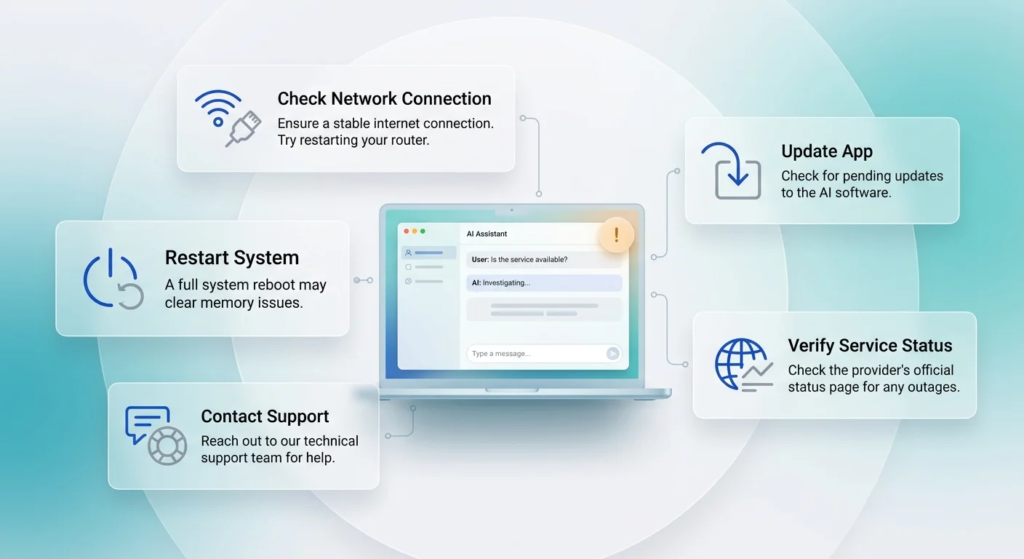
AI Tool Still Not Working? When to Contact Support
If you’ve worked through the fixes above — confirmed there’s no active outage, cleared cache, logged back in, updated the app, disabled extensions, and ruled out a usage limit — and the problem persists, it’s a reasonable point to stop self-troubleshooting and contact the provider’s support directly. This is especially true if you’re seeing a specific, unusual error message (rather than a generic failure), since that message is exactly what a support team needs to diagnose the issue quickly rather than you repeating the same general troubleshooting they’d otherwise ask you to try first.
When contacting support, include the exact error message (a screenshot helps), the device and browser or app version you’re using, and roughly when the problem started — this context alone often resolves the ticket faster than a back-and-forth of basic troubleshooting questions.
AI Tool Not Working: Common Mistakes People Make When Troubleshooting
Assuming it’s always an outage. Most “AI tool not working” reports are local (cache, connection, account) rather than a provider-wide outage — checking the status page first prevents wasted time assuming the wrong cause.
Repeatedly refreshing or retrying without changing anything. If a cache, cookie, or session issue is the cause, refreshing alone won’t fix it — clearing cache or logging out first is what actually resolves it.
Not checking for a usage limit before assuming it’s broken. Slow or truncated responses that started right after a burst of heavy use are a common and easily overlooked sign of a rate limit rather than a bug.
Disabling all extensions and troubleshooting other issues at the same time. Changing several variables simultaneously makes it hard to know which fix actually worked — testing one change at a time gets you a clearer answer faster.
Contacting support with “it’s not working” and no detail. A specific error message, device/browser info, and rough timing dramatically speeds up how quickly support can actually help.
AI Tool Not Working: FAQs
Why is my AI tool not working right now? The most common causes are a temporary provider outage, a stale browser cache or cookie issue, an expired login session, an outdated app version, a browser extension conflict, or hitting a usage/rate limit — checking these in order usually identifies the cause quickly.
How do I know if an AI tool is down for everyone or just me? Check the provider’s official status page (commonly at status.[provider’s domain]) or search “[tool name] down” to see real-time reports from other users — if the status page shows an active incident, the issue is on the provider’s end, not yours.
Why does my AI tool keep freezing or not responding? This is frequently caused by a stale browser cache, an unstable internet connection, or a browser extension blocking requests — clearing cache and testing in an incognito window (where most extensions are disabled) usually isolates the cause.
What does “usage limit reached” mean on an AI tool? It means you’ve hit the maximum number of messages, requests, or usage minutes allowed on your current plan within a given time window — most tools reset this after a set period (commonly hourly or daily) or allow an upgrade to a higher-limit plan.
Will clearing my cache delete my AI tool’s chat history? Generally no — chat history is typically stored on the provider’s servers tied to your account, not in your browser’s local cache, so clearing cache and cookies (aside from possibly logging you out) usually doesn’t erase your conversation history.
Why is my AI tool not working only on my phone? Common mobile-specific causes include an outdated app version, missing permissions (especially for voice or camera features), a poor mobile data connection, or a phone operating system that’s fallen out of compatibility with the current app version.
Can a VPN cause an AI tool to stop working? Yes — some AI providers restrict access from certain regions or flag VPN traffic as suspicious, which can cause login failures, blocked access, or degraded performance; temporarily disabling your VPN is a quick way to test whether it’s the cause.
How long do AI tool outages usually last? This varies significantly by provider and incident severity — anywhere from a few minutes for a minor degradation to several hours for a larger outage — the provider’s status page is the most reliable source for real-time updates on an active incident’s expected resolution.
Why did my AI tool suddenly log me out? This is usually caused by an expired session token, a password or security setting change, or the provider enforcing a periodic re-authentication for security purposes — simply logging back in typically resolves it.
When should I stop troubleshooting and contact support? Once you’ve confirmed there’s no active outage, cleared cache, logged back in, updated the app, and ruled out a usage limit, and the issue persists — especially if you’re seeing a specific, unusual error message — it’s a reasonable point to contact support directly with that error message and your device/browser details.
AI Tool Not Working — Final Takeaway
An AI tool not working is almost always one of a small handful of predictable causes — a provider-side outage, a stale browser session, an account or billing issue, an outdated app, or a usage limit — and working through them in that order resolves the large majority of cases within a few minutes. Start with the status page to rule out an outage, then move through the cache, login, update, and usage-limit checks before assuming you need to contact support. If the problem persists after all of that, you’ll have exactly the detail a support team needs to help you quickly.

Hamad Arshad
SEO Specialist | SEO Manager | GEO Strategist
7+ Years of Experience in SEO, GEO, AEO, AI SEO, Local SEO, Technical SEO, PPC, Google Ads & Meta Ads.







Leave a Reply